
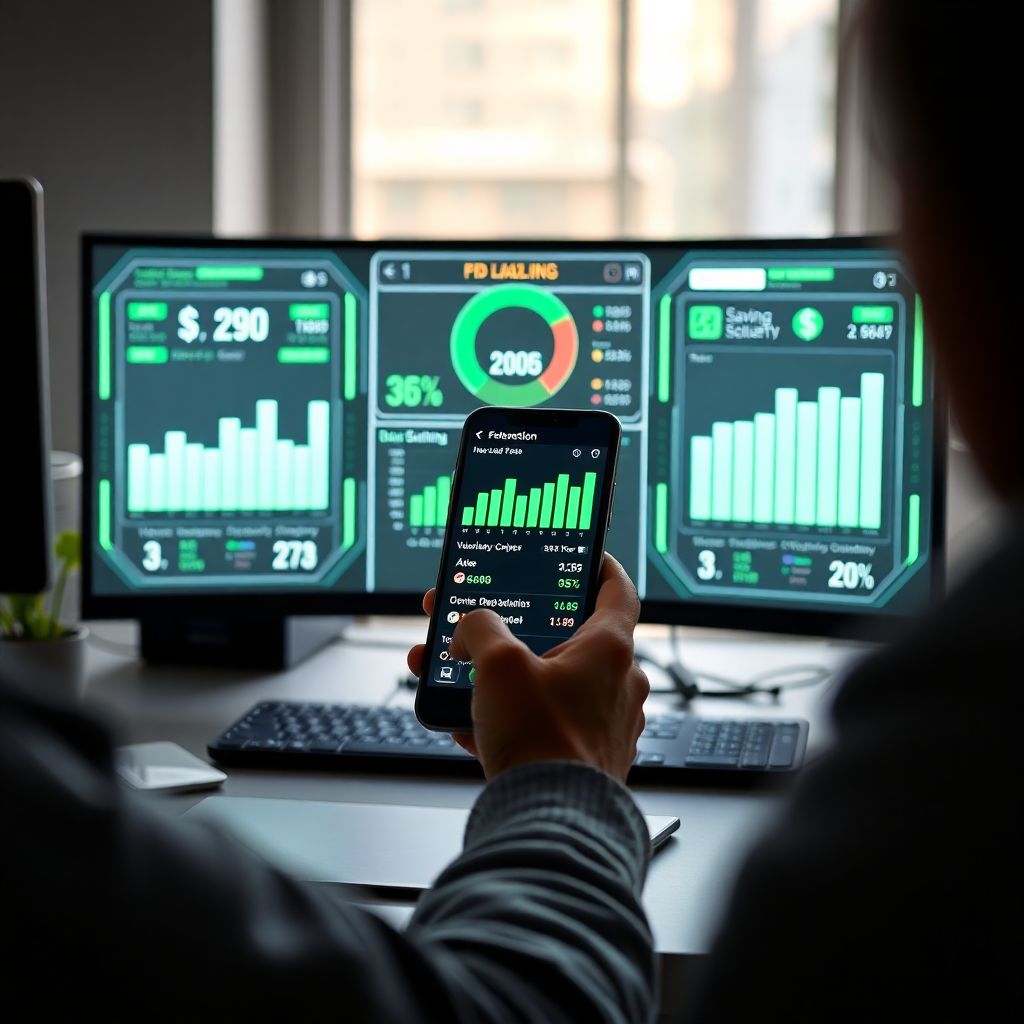
Use budgeting apps like a game HUD by picking a few vital stats, keeping them always visible, and reacting to alerts the way you react to low health or ammo. Start with one personal finance app for budgeting and saving, define your on-screen metrics, then tune alerts and visuals until they feel as natural as your favorite overlay.
Core parallels between HUDs and budgeting apps
- Both HUDs and budget tracker apps with spending categories highlight only the most critical information in real time.
- Spending alerts mirror low-health or cooldown warnings, nudging you to adjust behavior instantly.
- Categories and tags work like overlays and filters, revealing patterns on demand.
- Color, icons, and placement shape your decisions more than raw numbers do.
- Good setups minimize clutter so you can act quickly without decision fatigue.
- Iterating your layout over time improves consistency, habits, and long-term outcomes.
Designing a financial HUD: choose what metrics stay on-screen

Using money management apps for beginners like a game HUD works best if you already track basic income and expenses and are comfortable with banking apps. It is especially helpful if you like visual dashboards, play games with overlays, or feel overwhelmed by raw spreadsheets.
It is usually not a good idea to build a complex financial HUD if:
- You are currently in crisis (collections, urgent bills) and need direct human support more than dashboards.
- You feel compulsive or anxious around money and constant notifications could worsen stress.
- You are unwilling to link any financial accounts; manual entry makes real-time views hard to maintain.
- You expect the app to "fix" your finances by itself, instead of supporting your decisions.
For everyone else, the goal is to mimic an in-game HUD: a clean surface with a few always-on numbers that guide quick micro-decisions. Think in terms of:
- Health bar: cash buffer or checking account balance.
- Ammo: remaining budget in your most variable categories (e.g., dining, fun, shopping).
- Quest tracker: progress toward one specific savings or debt-paydown goal.
- Danger indicators: alerts for overspending or unusually large transactions.
Start with no more than three to five metrics on your "front screen" and treat everything else as a secondary overlay you open only when needed.
Mapping overlays to your spending patterns and goals
To turn an expense tracking app with real-time insights into a practical financial HUD, collect a few basic inputs and tools before you start building overlays.
Information and access you will need
- Read-only access to your main checking account and primary credit card.
- At least three months of transaction history to spot spending patterns.
- Your fixed monthly commitments (rent, utilities, loans, subscriptions).
- One to three concrete goals (e.g., build a starter emergency fund, pay down a specific card, save for a small upgrade).
App capabilities that mirror game overlays
When you compare the best budgeting apps, look for features that behave like layers and filters rather than just static reports:
- Custom spending categories: lets you group purchases into meaningful "lanes" you can toggle on or off.
- Real-time or daily sync: updates transactions frequently enough to support in-the-moment choices.
- Flexible dashboards or widgets: allows pinning specific metrics (e.g., "Groceries remaining") to your home screen.
- Rule-based alerts: notifications triggered by category, amount, or balance thresholds.
- Data export or API access (optional): useful if you want to build custom overlays on top of your main app.
A solid personal finance app for budgeting and saving should cover most of these, even if you do not use the more advanced options immediately.
Real-time alerts and micro-feedback: setting thresholds that work
Before you configure alerts like a game HUD, note these risks and limits:
- Too many notifications can cause alert fatigue, making you ignore important signals.
- Overly tight limits may create guilt and stress, pushing you to abandon the system.
- Linked accounts increase exposure if your device is lost or compromised, so device security matters.
- Real-time data can lag; treat every alert as a prompt to review, not as an absolute truth.
-
Define your primary HUD goal
Decide the single main behavior you want your alerts to shape in the next month. Examples: keep total dining under a fixed amount, avoid dipping below a minimum balance, or move a small transfer to savings after each paycheck.
-
Set conservative base thresholds
In your budgeting app, create simple, forgiving limits instead of strict ones. Start with:
- One alert for low balance on your main account.
- One alert when a high-risk category (e.g., dining, shopping) reaches around the point you usually start regretting spending, not your absolute maximum.
- One alert for any single transaction above a personally meaningful size.
The idea is to mimic "early warning" lights, not hard fail states.
-
Link alerts to concrete micro-actions
For each alert type, pre-decide a small, safe reaction, similar to how you instinctively dodge or heal in a game:
- Low-balance alert → pause non-essential spending for 24 hours and review upcoming bills.
- Category overspend alert → reduce a different discretionary category by a small, fixed amount.
- Large-transaction alert → confirm that you recognize the charge and file it into the correct category.
-
Enable real-time or daily sync safely
Turn on real-time or daily syncing in your expense tracking app with real-time insights, but review security options first:
- Use strong device authentication (PIN, biometrics) and keep your OS updated.
- Prefer apps that clearly separate view-only data from actions like transfers.
- Disable financial notifications on lock screens if others can access your phone.
-
Add gentle micro-feedback nudges
Once base alerts feel comfortable, layer in HUD-style nudges instead of aggressive warnings:
- Weekly summary highlighting your "MVP category" (where you stayed most under target).
- Progress bar on your main savings goal pinned to the app home screen.
- Positive notifications when you manually categorize a purchase or skip a usual treat.
-
Review and tune thresholds weekly
Plan a short weekly review where you check which alerts were helpful, which felt noisy, and adjust:
- Raise limits that trigger too often without changing your behavior.
- Lower or refine alerts that never trigger but correspond to real problem areas in your history.
- Pause any notification that increases stress without offering a clear next step.
Minimizing cognitive load: visual hierarchy, colors, and icons
Use this checklist to keep your financial HUD readable and low-stress.
- Only three to five metrics appear on your main dashboard; everything else is behind one tap or click.
- Important numbers (cash buffer, key budgets, main goal progress) are at the top or center, not buried below graphs.
- Colors carry consistent meaning (e.g., green for "on track", amber for "review soon", red for "needs attention"), with no more than three status colors.
- Icons are simple and intuitive (e.g., plate for food, cart for shopping) and not reused for different meanings.
- Text labels are short and action-oriented, such as "Groceries left" instead of vague names.
- Graph types match the job: progress bars for goals, simple bar charts for category comparisons, minimal line charts for trends.
- There is enough spacing between elements so your eye can quickly separate "health" (cash) from "ammo" (budget) from "quests" (goals).
- Night/dark mode is enabled if you frequently check finances in low light, to reduce strain.
- Home screen widgets show only one or two metrics, never your full transaction list, to avoid constant distraction.
Privacy and risk management when exposing live data
Common mistakes when you treat budgeting dashboards like game overlays:
- Leaving full account balances and recent transactions visible on your phone lock screen or streaming layout.
- Reusing weak passwords or not enabling multi-factor authentication on your budgeting and banking apps.
- Linking every single account to multiple tools instead of choosing one main hub and limiting integrations.
- Sharing screens while streaming or presenting without checking if your money management apps are open in the background.
- Storing screenshots of your full financial HUD in unsecured photo backups.
- Granting unnecessary permissions (contacts, location) inside a budgeting app when they are optional.
- Ignoring app updates and security notices, which can leave known vulnerabilities unpatched.
- Letting alert messages show transaction details on smartwatches or shared devices.
Audit your setup regularly, especially if you experiment with overlays or widgets on desktops you also use for gaming or streaming.
Iterating your interface: A/B testing routines and retention signals
You can treat your budgeting HUD as a live build you refine over time. If that feels heavy, there are lighter alternatives that still borrow HUD principles.
- Single-app, low-friction setup: Use one general-purpose budget tracker app with spending categories and commit to checking it once a day without heavy customization. Ideal if you want clarity without dashboards and are still learning the basics.
- Calendar-first view with light overlays: Keep your main focus on a calendar (bills, paydays) and use a simple widget or small dashboard only for goal progress and remaining discretionary cash. Helpful if time-based planning matters more than category-level analysis.
- Weekly scorecard instead of live HUD: Turn off most real-time alerts and review a weekly "match summary" that scores your progress by category, habits, and goals. This suits people who get stressed by constant numbers but still like structured feedback.
- Hybrid coaching plus app: Pair a personal finance app for budgeting and saving with human or community guidance, using screenshots of your HUD for discussion. Best when you want accountability and strategy help, not just visuals.
Whatever path you choose, treat changes as small experiments. Adjust one element at a time-such as a color scheme, widget, or single alert-and give it at least a week before judging whether it helps.
Practical dilemmas and quick fixes
How do I choose between all the best budgeting apps?
List the top three features that matter to you most (e.g., real-time sync, goal tracking, or simple views). Test two apps for a week each using the same categories and thresholds, then keep the one you open more often without forcing yourself.
What if real-time alerts make me anxious instead of helping?
Turn off all but one or two alerts, keeping only low-balance and large-transaction notifications. Switch the rest to daily or weekly digests so you still get feedback but without constant interruptions.
Can I build a useful HUD without linking bank accounts?
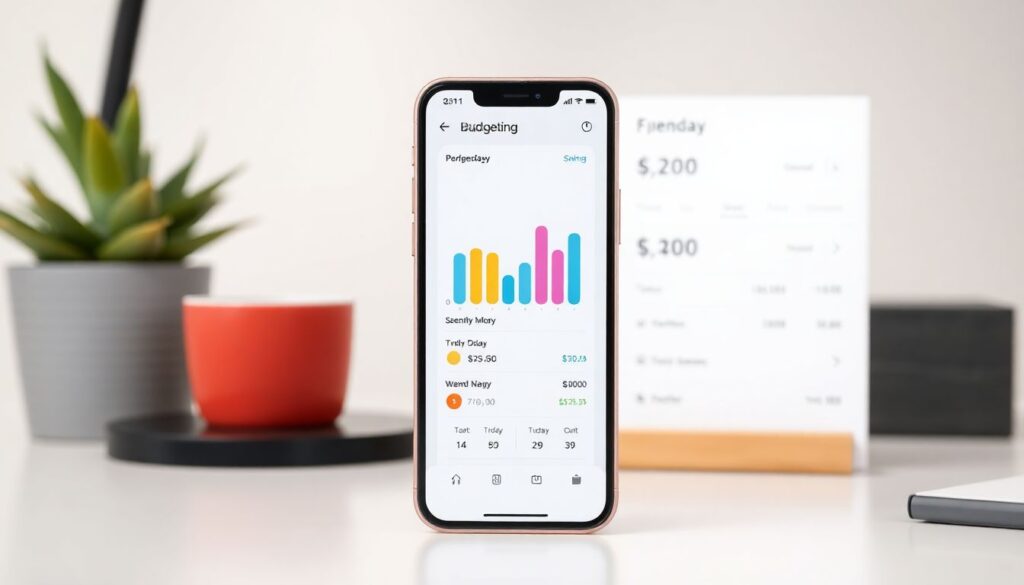
Yes, but it works best with a small number of categories and a consistent logging habit. Enter spending once a day and focus on progress bars and weekly summaries rather than minute-by-minute trends.
How detailed should my spending categories be?
Start broad-around five to eight main categories-so you can spot patterns without drowning in labels. Only split a category further when you consistently ask yourself, "Which part of this is really causing trouble?"
Is an always-on dashboard safe if I share my computer?
It is safer to require a password to open your budgeting app and avoid leaving dashboards open on shared screens. Log out after each session and avoid browser-based overlays on shared or work devices.
How often should I redesign my financial HUD?
Review the layout monthly, but only change one or two elements at a time. If you change everything at once, it is harder to tell which tweak actually improved your behavior.
Do money management apps for beginners still help advanced users?
Yes, many beginner-focused apps have clean HUD-style dashboards that work well even for experienced users. You can often layer extra rules or exports on top while keeping the core interface simple and fast to read.
Комментарии