
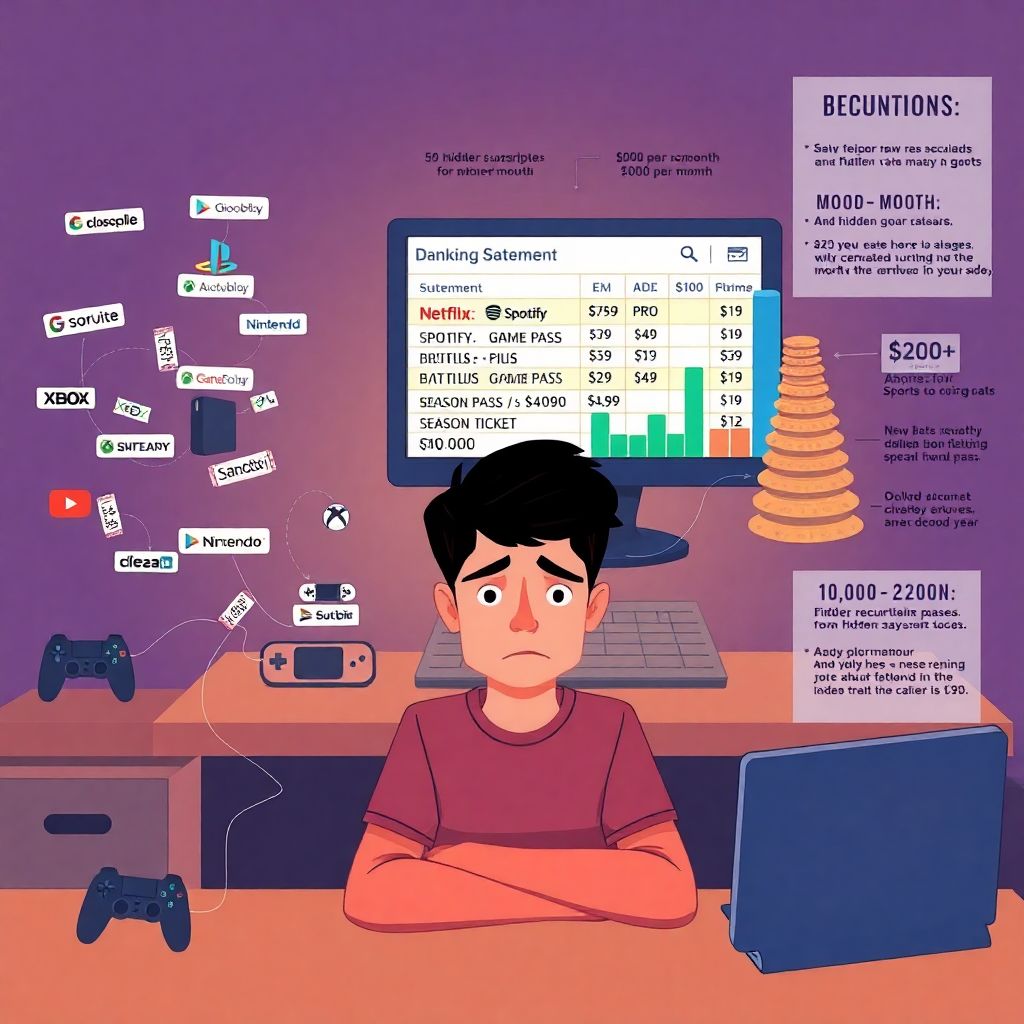
Why Recurring Charges Quietly Eat Your Money
If your bank statement looks like alphabet soup—Netflix here, Spotify there, random “PRO” and “PLUS” lines—you’re not alone.
Subscriptions, battle passes, and season tickets are designed to feel cheap *per month* but expensive *per year*.
A few hard numbers from the last three years:
– In 2022, a C+R Research survey found Americans thought they spent about $86/month on subscriptions, but actually paid around $219/month.
– In 2023, Rocket Money (formerly Truebill) reported that its users had an average of 5–7 active subscriptions and spent roughly $275/month on recurring services.
– In 2024, multiple fintech apps and banks reported that 40–60% of customers discovered at least one subscription they didn’t know they were still paying for once they reviewed their transactions.
I don’t have live access to new 2025 statistics, but this 2022–2024 trend is clear: small recurring charges pile up fast, and most people underestimate them badly.
Let’s break down, step by step, how to stop this slow leak—across streaming, battle passes, game subs, and season tickets—without turning your life into an Excel nightmare.
—
Step 1. Map the Damage: Know What You’re Actually Paying For
The first move is boring but critical: you can’t cut what you can’t see.
1.1. Pull all your statements (yes, all of them)
Gather the last 3–6 months of:
– Credit card statements
– Debit card / checking account statements
– PayPal, Apple Pay, Google Pay, etc.
Scan for:
– Repeating monthly or yearly charges
– Anything with “Subscription”, “Recurring”, “Member”, “Plus”, “Pro”, “Gold”, “Pass”, “Season”, or “Prime” in the name
– Game platform charges (Steam, PlayStation, Xbox, Nintendo, mobile stores)
You’re building a master list: *what the service is + how much it costs + how often it bills*.
Newbie tip:
If you feel overwhelmed, start with just one account (your main credit card), then add others later. Partial progress is still progress.
—
1.2. Use apps to speed this up (but don’t blindly trust them)
You’ll see a lot of tools advertised as the best apps to manage and cancel subscriptions. They can genuinely help, especially for spotting forgotten charges.
Look for apps that:
– Connect read-only to your bank/credit cards
– Automatically detect recurring payments
– Group items by merchant or category
– Let you export a list (so you can track in a spreadsheet or notes app)
Warning about apps:
These tools sometimes mislabel expenses (e.g., confusing a recurring bill with a one-off purchase from the same merchant). Use them as a *starting point*, not the final word. Always double-check their findings against your statements.
—
1.3. Don’t forget platform-specific traps
A lot of people try to figure out how to find and cancel hidden subscriptions on iPhone and Android *only after* a surprise renewal hits.
On top of bank statements, check:
– App Store / Google Play subscriptions
– Console stores (PlayStation, Xbox, Nintendo)
– Game launchers (Battle.net, EA app, Ubisoft Connect)
– Smart TV and streaming sticks (Roku, Amazon, Apple TV)
Each ecosystem can hide its own recurring traps, especially game passes and free-trial-turned-paid services.
—
Step 2. Sort and Prioritize: Not Every Subscription Is Evil
Once you have a list, don’t nuke everything at once. Some subscriptions genuinely save time or money. The key is intentional spending.
2.1. Use a simple 4-bucket system
For each line, ask: “Does this still earn its keep?”
Sort into:
1. Essential
– Cloud backup for work, core productivity tools, maybe one or two “must-have” entertainment services.
2. Nice-to-have
– You use it regularly, but you could live without it.
3. Barely used
– You log in less than once a month or keep forgetting it exists.
4. What is this?
– You don’t recognize it, or you thought you cancelled.
This instantly shows where to focus. Buckets 3 and 4 are your main targets.
Newbie tip:
If you’re unsure about a service, move it to “Barely used” and set a calendar reminder in 30 days. If you didn’t touch it in a month, it’s a clear candidate for cancellation.
—
2.2. Convert everything to “per year” to feel the real cost
Recurring charges look harmless at $4.99/month. Multiply by 12:
– $4.99/month → ~$60 per year
– $14.99/month → ~$180 per year
– $29.99/month → ~$360 per year
When you stack:
– 3 streaming services
– 2 game subs
– 1–2 productivity tools
– 1 cloud storage
– 1 battle pass or season pack here and there
…it’s easy to hit $1,000–$2,000 per year in background expenses without noticing.
Seeing the annual number makes the decision much clearer.
—
Step 3. Cancel the Obvious Leaks First
Now we get to the practical part: actually shutting things off.
3.1. Start with the easiest “wins”
For “Barely used” and “What is this?” items:
– Log in to the service’s website (preferably on desktop; options are often clearer)
– Go to Account → Billing / Subscription / Membership
– Look for “Cancel”, “Manage”, or “Turn off auto-renew”
If you’re wondering how to cancel unwanted subscriptions with minimal headache, begin with big-name platforms—Netflix, Spotify, major game services—because they usually have clear cancellation flows due to legal requirements in many countries.
Watch out for these tricks:
– Cancellation options hidden behind multiple clicks
– “Pause” instead of cancel as the default choice
– Dark patterns like changing button colors to steer you away from cancelling
Stay focused on fully turning off auto-renewal, not just “pausing” or “downgrading” unless that truly fits your plan.
—
3.2. Battle passes and game subscriptions: high fun, sneaky cost
Games are masters at drip-charging you.
If you want to cancel battle pass and game subscription charges effectively:
– Check your accounts for: Xbox Game Pass, PlayStation Plus, Nintendo Switch Online, EA Play, Ubisoft+, MMO subs (FFXIV, WoW, etc.), and in-game passes.
– Open each platform’s account management page on the web (it’s often clearer than in-game menus).
– Turn off recurring billing for anything you don’t plan to use next month.
Key mindset shift:
A battle pass you “might play later” but don’t touch for weeks is just a donation to the developer. You can always re-subscribe when you’re actually back into the game.
Newbie tip:
If you only game heavily during certain seasons (holidays, vacations), treat these as short sprints: subscribe, enjoy, then set a reminder to cancel the day you know you’ll be done.
—
3.3. Season tickets and memberships: track renewal dates
Season tickets for sports, theater, or other events often:
– Renew automatically each season
– Offer “early access” or “priority seating” that psychologically nudges you to keep paying
– Bill once per year, so they’re easy to forget
Do this:
– Find the renewal month for each season pass or annual membership
– Add a calendar reminder 30–45 days *before* that date
– Decide in advance: “Am I really going to use this next season?”
If you attend just one game or show per year, individual tickets can be cheaper than holding an unused season ticket.
—
Step 4. Use Your Bank and Cards as a Last Line of Defense
Sometimes cancellation is messy: companies hide options, support is slow, or they keep charging anyway. This is where your bank and card protections come in.
4.1. Stop charges at the source (card and bank tools)
If you’re struggling with how to stop recurring charges on credit card when a merchant won’t cooperate:
– Log into your bank or card app
– Look for options like:
– “Manage recurring payments”
– “Block merchant”
– “Turn off card for subscriptions” or “card controls”
– In some countries, you can explicitly cancel a “continuous payment authority” with your bank
If they keep billing:
– Dispute the charge as unauthorized or previously cancelled (keep proof: emails, screenshots of cancellation).
– Ask your bank if they can issue a new card number and invalidate old mandates, especially after shady behavior or suspected fraud.
Warning:
Blocking the card doesn’t always cancel the underlying contract. You might still technically owe money or face collections if it’s a legitimate contract. Use this mainly when the company is unresponsive or clearly acting in bad faith—and document everything.
—
4.2. Use virtual cards and spending limits strategically
To protect yourself from future headaches:
– Create virtual cards or dedicated card numbers for trial subscriptions.
– Set low limits or use cards that you’re willing to shut down if needed.
– Track which services use which card in a note or password manager entry.
That way, if a company misbehaves, you can cut off only that “channel” instead of replacing your main card across dozens of services.
—
Step 5. Clean Up Hidden Mobile and Platform Subscriptions
A lot of recurring charges aren’t billed directly by the service—they flow through Apple, Google, or console stores. That’s why people so often ask how to find and cancel hidden subscriptions on iPhone and Android specifically.
5.1. iPhone (iOS) subscriptions
On your iPhone or iPad:
1. Open Settings
2. Tap your Apple ID name at the top
3. Tap Subscriptions
4. You’ll see active and expired subscriptions
5. Tap any item → choose Cancel Subscription or Cancel Free Trial
Repeat this for each Apple ID you use (including any old accounts if they’re still active).
—
5.2. Android (Google Play) subscriptions
On Android devices:
1. Open the Google Play Store app
2. Tap your profile icon → Payments & subscriptions
3. Tap Subscriptions
4. Review the list; tap one to Cancel subscription
Note: Some Android device makers add their own app stores or account systems (Samsung, Huawei, etc.). Check those too if you ever used them to buy apps or content.
—
5.3. Console and streaming device subscriptions
Don’t forget:
– PlayStation: Settings or account management on the web → Subscriptions / Services
– Xbox: Microsoft account → Services & subscriptions
– Nintendo Switch: Nintendo account on web → Shop menu → Your subscriptions
– Roku / Amazon Fire / Apple TV: Each has its own subscription management screens; check them if you ever clicked “Subscribe” directly on the device
These often carry things like extra sports packages, premium channels, or free trials that turned paid.
—
Step 6. Build a Simple System So the Problem Doesn’t Come Back
You don’t need a complex budget. You just need enough structure so recurring charges don’t silently regrow.
6.1. Set a “subscription budget” and a hard cap
Decide:
– A monthly total you’re comfortable with (e.g., $50, $100, $150)
– A maximum number of live subscriptions (e.g., no more than 5–7 at any time)
When you want something new:
– Add only if you remove something else (“one in, one out”), or
– Only start it if the total stays under your cap
This stops the slow bloat that happened between, say, 2022 and 2024 for so many users.
—
6.2. Run a 15-minute audit every quarter
Put a recurring reminder in your calendar:
– Every 3 months, open your bank app and do a quick scroll through the last cycle
– Check your Apple/Google and major platforms again
– Ask: “Am I still actively using this? Would I notice if it disappeared tomorrow?”
If the honest answer is “no,” cancel it.
Newbie tip:
Combine this with something you already do (e.g., first weekend of the quarter with your morning coffee). Habits stick better when they ride on existing routines.
—
6.3. Be intentional with trials and promos
Free trials are fine—if you treat them like *appointments*, not gifts.
Whenever you start a new trial:
– Immediately set a reminder 2–3 days before it ends
– Add a note: “Cancel if not amazing”
– Use a virtual card if possible
If the service doesn’t feel clearly worth the money by the reminder date, cancel on the spot. “Maybe later” usually becomes “accidentally paid for six months.”
—
Step 7. When to Use Tools, and When to Go Manual
There are dozens of apps and services that promise to lower your bills automatically. Some are legitimate; some are just middlemen taking a cut.
7.1. Good use cases for subscription managers
Consider them if:
– You have many accounts and cards and genuinely lose track
– You want alerts for price hikes or new recurring charges
– You’re comfortable granting read-only access to transaction history
But treat them as assistants, not magic. You still need to decide what to keep and what to kill.
—
7.2. When manual control is better
Manual work is worth it if:
– You’re trimming big-ticket items (game passes, season tickets, premium software)
– You don’t want to share financial data with yet another app
– You’re dealing with complex things like gym contracts or long-term memberships
In those cases, directly dealing with the provider—and documenting the conversation—is usually safer and more precise than delegating cancellation to a third party.
—
Red Flags and Common Mistakes to Avoid
Here are patterns that repeatedly cost people money over the last few years:
– The “I’ll remember to cancel” illusion
You almost never do. Without a calendar reminder, trials become paid periods 70–80% of the time, according to multiple fintech app reports from 2022–2024.
– Underestimating low-cost items
$2.99 here and $4.99 there feels trivial, but across multiple services it can rival your rent increase over a year.
– Not checking annual renewals
Software, VPNs, storage, and season tickets often jump in price after year one. Auto-renewals at the new price can be a nasty surprise.
– Cancelling only in-app but not on the platform
Deleting an app or unsubscribing from emails is not the same as cancelling billing. Always confirm via the payment platform (Apple, Google, console store, or card entry in your browser).
—
Putting It All Together: A Short, Practical Plan
If you want a simple checklist you can run this week:
– Day 1–2:
– Pull last 3–6 months of statements
– Use an app or manual review to list all recurring charges
– Day 3:
– Sort them into Essential / Nice-to-have / Barely used / What is this?
– Convert each to yearly cost to see the real impact
– Day 4–5:
– Cancel everything in “Barely used” and “What is this?” buckets
– Especially: streaming overlaps, idle game passes, old season tickets
– Day 6:
– Set a hard monthly subscription budget
– Create calendar reminders for big annual renewals and for a quarterly audit
– Day 7:
– Tighten future behavior: use virtual cards for trials, set reminders as soon as you subscribe, and only add a new sub if you remove another or stay under your cap.
Once you’ve done this once, maintaining control is surprisingly easy. You’ll know exactly how to cancel unwanted subscriptions, how to push back through your bank if needed, and how to keep your entertainment and tools without letting recurring charges quietly drain your wallet year after year.